Table of Contents
You installed One UI 9, everything looked great, and then an hour later Wi-Fi says “Connection failed.” Or your Galaxy suddenly insists there’s no SIM card in it, even though you’re staring at the tray.
You’re not alone. Here’s what Galaxy owners are reporting, the few workarounds that seem to help, the ones that waste your time, and what to do if you haven’t updated yet.
What’s going wrong after One UI 9
As One UI 9 (Android 17) reaches more Galaxy phones, a growing number of owners report connection problems. Andro News summarized the reports on November 5, 2026, citing Android Authority and SammyFans. As of that date, Samsung hadn’t publicly acknowledged the bugs.
| Problem | What people see | Models mentioned |
|---|---|---|
| Wi-Fi drops | “Connection failed” after an hour or two; reboot or airplane mode only fixes it briefly | Midrange and flagship models |
| 5GHz Wi-Fi missing | Stuck on 2.4GHz, or can’t join certain home networks | Various |
| Mobile data dead | Apps only load on Wi-Fi | Various |
| No SIM detected | Neither SIM shows up; Samsung Members says no SIM inserted | Galaxy A56, A36, A52s, S24 Plus |
| Wi-Fi Calling | Stopped working on T-Mobile | Galaxy Z Fold 7 |
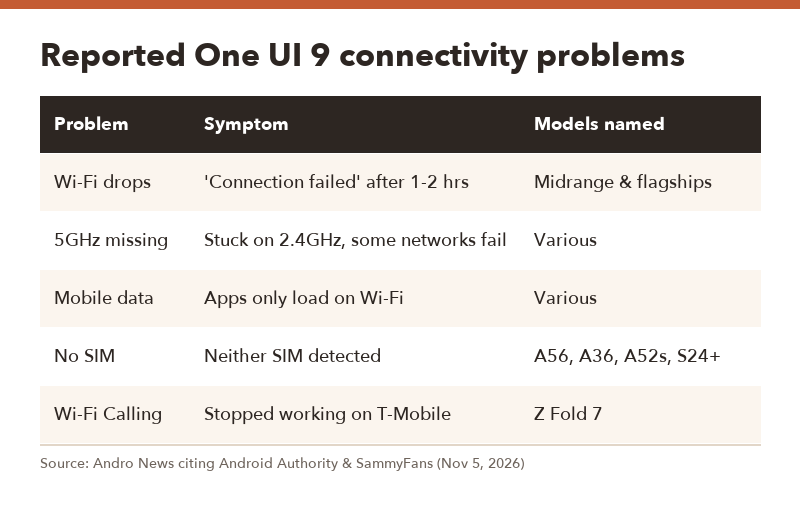
▲ Based on user reports, not an official Samsung list.
3 fixes that seem to help
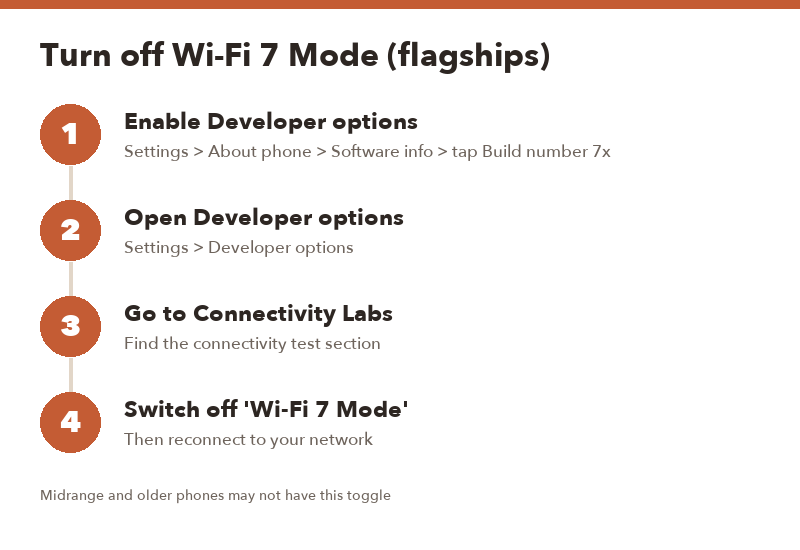
1. Turn off Wi-Fi 7 Mode (flagships)
For Wi-Fi drops on high-end Galaxy phones, the workaround getting the most mentions is switching off Wi-Fi 7 Mode in Developer options.
- Go to Settings > About phone > Software information and tap Build number seven times to unlock Developer options.
- Open Settings > Developer options.
- Find Connectivity Labs.
- Turn off Wi-Fi 7 Mode, then reconnect to your network.
Midrange and older phones don’t have this toggle, so this one’s flagship-only.
2. Switch to an eSIM (SIM bug)
If your phone stopped seeing the physical SIM and supports eSIM, moving your number to an eSIM profile is a temporary way around it until Samsung ships a hotfix. Your carrier’s app or support line can usually convert it.
3. Pause automatic updates (if you’re still on One UI 8.5)
Haven’t updated yet? Lucky you. Turn off automatic software updates and give Samsung a couple of weeks to release a patched build.
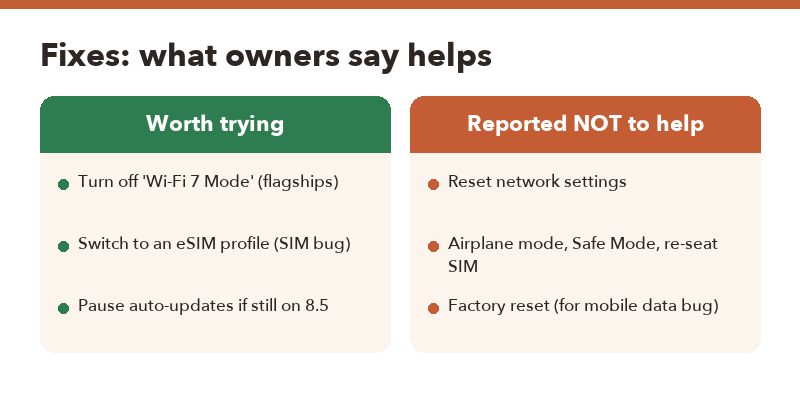
Fixes reported NOT to help with mobile data
Before you spend an evening on this, here’s what owners say didn’t bring mobile data back:
- Resetting network settings
- Toggling airplane mode
- Booting into Safe Mode
- Removing and reinserting the SIM tray
- A full factory reset
That last one matters. Please don’t wipe your phone hoping it’ll fix a software bug that ships with the update itself. You’d just lose your setup and still have the problem.
Already updated and still stuck? What to do next
- Report it in Samsung Members. Use the Error reports option. More reports help Samsung prioritize a fix.
- Check for updates every few days. Hotfixes often arrive as small updates.
- Call your carrier if you lose service entirely. They can confirm it’s not a network-side or account issue.
- Visit a Samsung service center if the SIM still isn’t detected and eSIM isn’t an option.
FAQ
Q. Has Samsung confirmed the One UI 9 Wi-Fi bug?
A. As of November 5, 2026, Samsung hadn’t issued an official statement. The issues come from user reports collected by tech sites.
Q. Can I roll back from One UI 9 to One UI 8.5?
A. Samsung doesn’t offer an official rollback for regular users. That’s why pausing the update is the safer move if you haven’t installed it.
Q. Is turning off Wi-Fi 7 Mode bad for speed?
A. You’ll lose Wi-Fi 7 features if your router supports them, but Wi-Fi 6 and 6E still work. A stable connection beats a fast one that keeps dropping.
Q. Does every Galaxy phone have this problem?
A. No. Many phones update without trouble. The reports cover a mix of midrange and flagship models, but not every unit is affected.