Table of Contents
Got an email from DreamHost about a forced password reset recently and shrugged it off? It’s worth a second look. DreamHost has now confirmed that an attacker sat inside one of its systems for roughly two months.
If you host a site there, especially if you ever used the web-based File Manager, here’s what was exposed, what DreamHost already did, and the six checks that are on you.
What happened at DreamHost
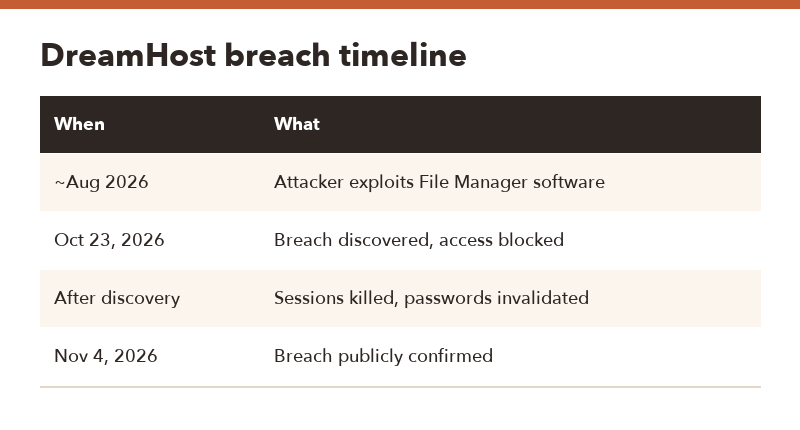
BleepingComputer reported on November 4, 2026 that DreamHost confirmed a data breach. An unauthorized party got into the server running its web File Manager by exploiting a vulnerability in that software. The access ran from approximately August 2026 until October 23, 2026, when it was discovered.
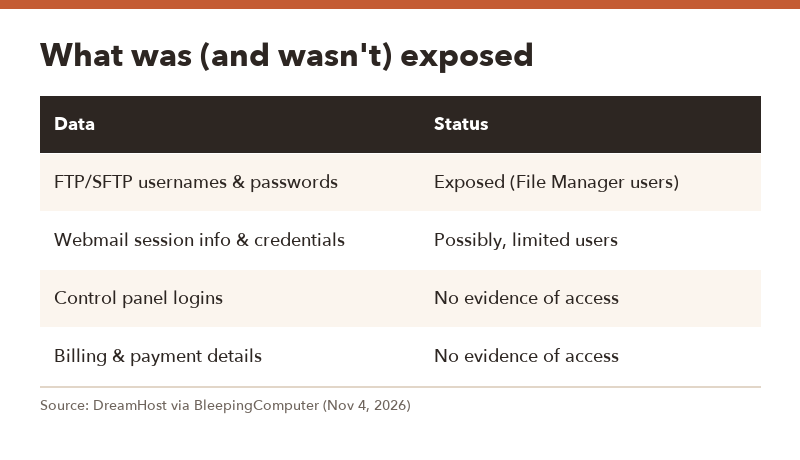
| Data | Status |
|---|---|
| FTP/SFTP usernames and passwords | Exposed for people who logged into the web File Manager |
| Webmail session information, including credentials | Possibly accessed for a limited number of users |
| Control panel logins | No evidence of access, per DreamHost |
| Billing and payment details | No evidence of access, per DreamHost |
DreamHost didn’t say how many customers were affected, and BleepingComputer’s questions about that went unanswered.
What DreamHost already did
- Blocked the attacker’s access and fixed the exploited vulnerability
- Ended active sessions for potentially affected users and invalidated their passwords
- Forced email and FTP/SFTP password resets earlier
- Offers one year of credit monitoring and identity theft protection through Equifax
That covers the front door. But here’s the thing: an attacker with your FTP login for weeks could have changed files on your site, and a password reset doesn’t undo that.
6 things to check on your site
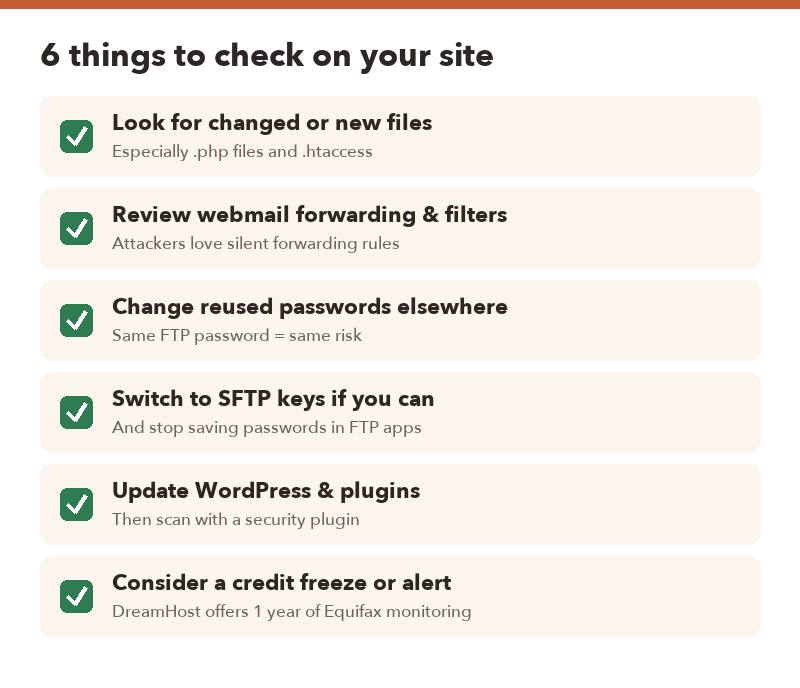
1. Look for changed or new files
Sort your site’s files by modified date and look at anything changed between August and late October that you didn’t touch. Pay special attention to .php files, .htaccess, and anything inside wp-content/uploads if you run WordPress.
2. Review webmail forwarding rules and filters
Attackers love quietly forwarding a copy of your mail to themselves. Open your webmail settings and delete any forwarding rule or filter you don’t recognize.
3. Change reused passwords
If your FTP or email password was used anywhere else, change it there too. Honestly, this is the step most people skip.
4. Tighten how you connect
Use SFTP instead of plain FTP, switch to SSH keys if your plan supports them, and avoid storing passwords in your FTP client.
5. Update and scan your CMS
Update WordPress (or your CMS), plugins and themes, then run a malware scan with a security plugin or your host’s scanner.
6. Consider a credit freeze or fraud alert
DreamHost itself suggests this. If you’re eligible, enroll in the Equifax monitoring it’s offering.
When to call in help
- You’re probably fine if you never used the web File Manager, have no forwarding rules you didn’t make, and see no unexpected file changes.
- Dig deeper if you find PHP files you didn’t upload, redirects to spam sites, or new admin users. Restore from a clean backup made before August if you have one.
- Get professional help for e-commerce or client sites where customer data might be involved.
FAQ
Q. Was my credit card exposed in the DreamHost breach?
A. DreamHost says it found no evidence that billing or payment details were accessed.
Q. I never used the File Manager. Am I affected?
A. The FTP/SFTP credential exposure involved people who logged into the web File Manager. Webmail sessions for a limited number of users may also have been affected, so still check your mail rules.
Q. DreamHost already reset my password. Do I still need to do anything?
A. Yes. A reset blocks future logins with the old password but doesn’t reverse any file changes made while the attacker had access.
Q. How long did the breach last?
A. From approximately August 2026 until it was discovered on October 23, 2026.